Common Shopify Mistakes
Shopify is genuinely approachable, but there are a handful of mistakes that come up repeatedly, usually because the documentation explains what to do without flagging what goes wrong if you do it in the wrong order, or at the wrong time.
These aren’t obscure edge cases. Most new store owners run into at least a couple of these.
1. Setting Up Locations After Creating Products
Section titled “1. Setting Up Locations After Creating Products”Shopify requires you to assign inventory to locations. If you create your products first and add a second location later, none of your existing products will automatically be assigned to it. You have to go back and update each one manually.
The fix: Set up all your locations under Settings → Locations before you start adding products. Even if you only have one location right now, it’s worth getting it right from the start.
See Managing Inventory & Locations for a full walkthrough.
2. Inconsistent Tags
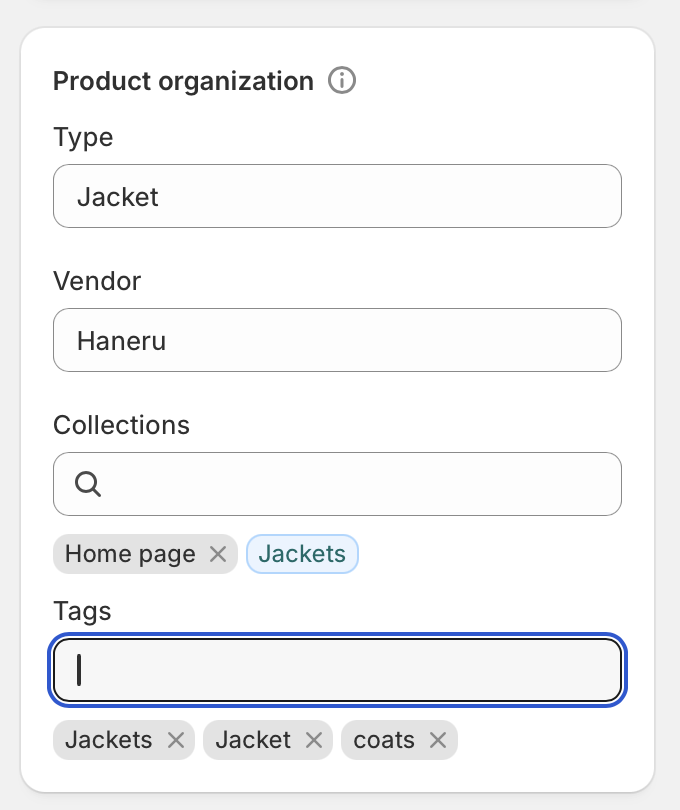
Section titled “2. Inconsistent Tags”Tags are powerful in Shopify. They drive Smart Collections, filter options, and search. But they only work if you’re consistent. Using Jacket, jacket, and jackets on different products means they won’t all appear in the same collection, and any rules you’ve built around tags will behave unexpectedly.
The fix: Decide on your tagging conventions before you start (lowercase, singular, no spaces) and stick to them. It’s far easier to establish the system upfront than to audit and fix hundreds of products later.
3. Using Compare-At Price Incorrectly
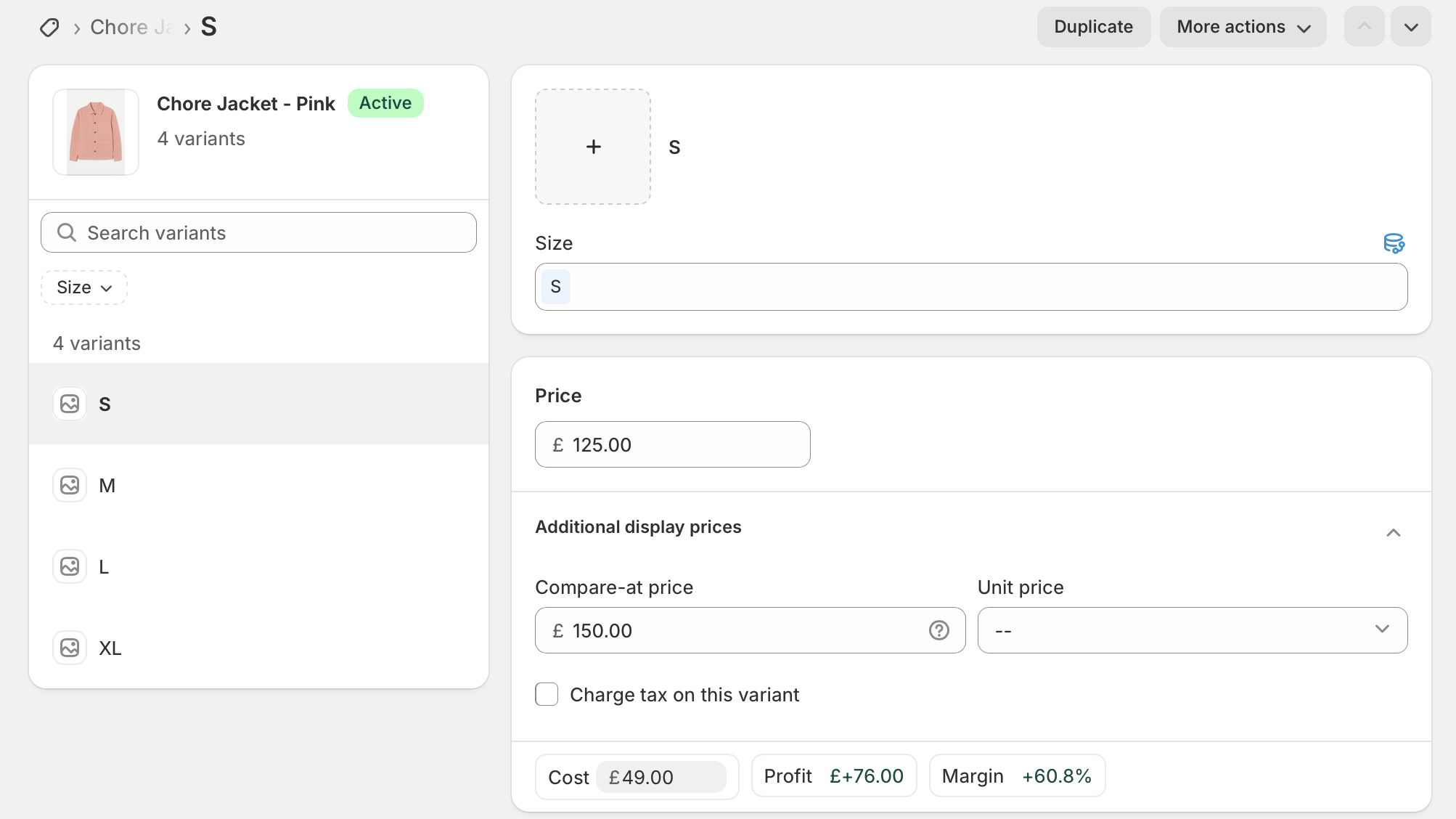
Section titled “3. Using Compare-At Price Incorrectly”The Compare-at price field is meant to show the original price before a markdown. Shopify displays it as a crossed-out price next to the current selling price, which signals a deal to customers.
The mistake: setting the compare-at price lower than the actual price, or setting both fields to the same value. Neither triggers the sale display correctly, and in the first case it actively looks broken.
The fix: Compare-at price should always be higher than the Price field. If a product isn’t on sale, leave compare-at blank entirely.
4. Launching Without a Test Order
Section titled “4. Launching Without a Test Order”Checkout is the most critical part of your store and the least tested by most new owners. Assuming it works because the product pages look right is the most expensive mistake on this list. Customers who hit a broken checkout leave and rarely come back.
The fix: Before launch, enable the Bogus gateway in Settings → Payments, complete a full purchase on your own store from start to finish, and verify the confirmation email arrives. Then disable the test gateway and re-enable your real payment provider.
See the Store Launch Checklist for the full test order walkthrough.
5. Leaving All Products in Active Status While Building
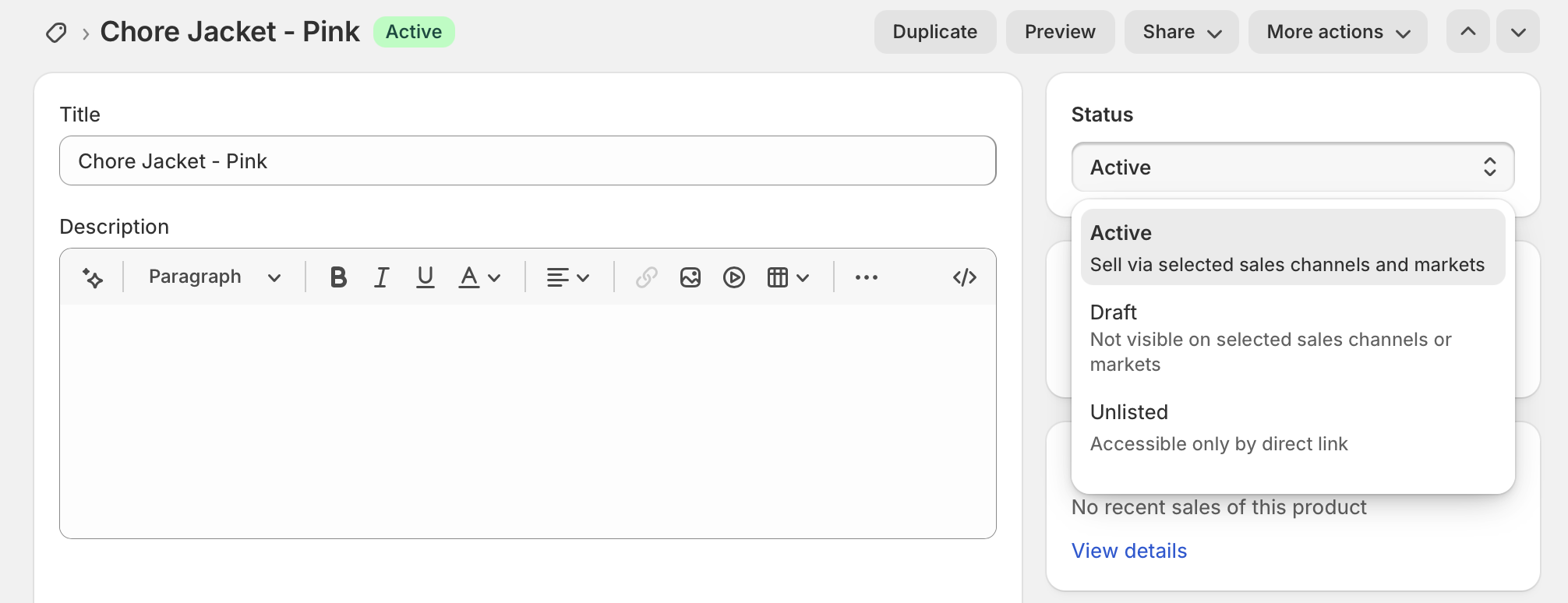
Section titled “5. Leaving All Products in Active Status While Building”When a product is set to Active, it’s live on your storefront the moment you save it. If your store is still in development, or even if you’re just mid-way through setting up a product, customers who find their way in will see incomplete listings with missing images, wrong prices, or placeholder descriptions.
The fix: Keep products in Draft while you’re working on them. Only switch to Active once a product is fully complete. It’s an extra click but prevents half-finished listings from going live.
6. Ignoring SEO Fields on Products and Collections
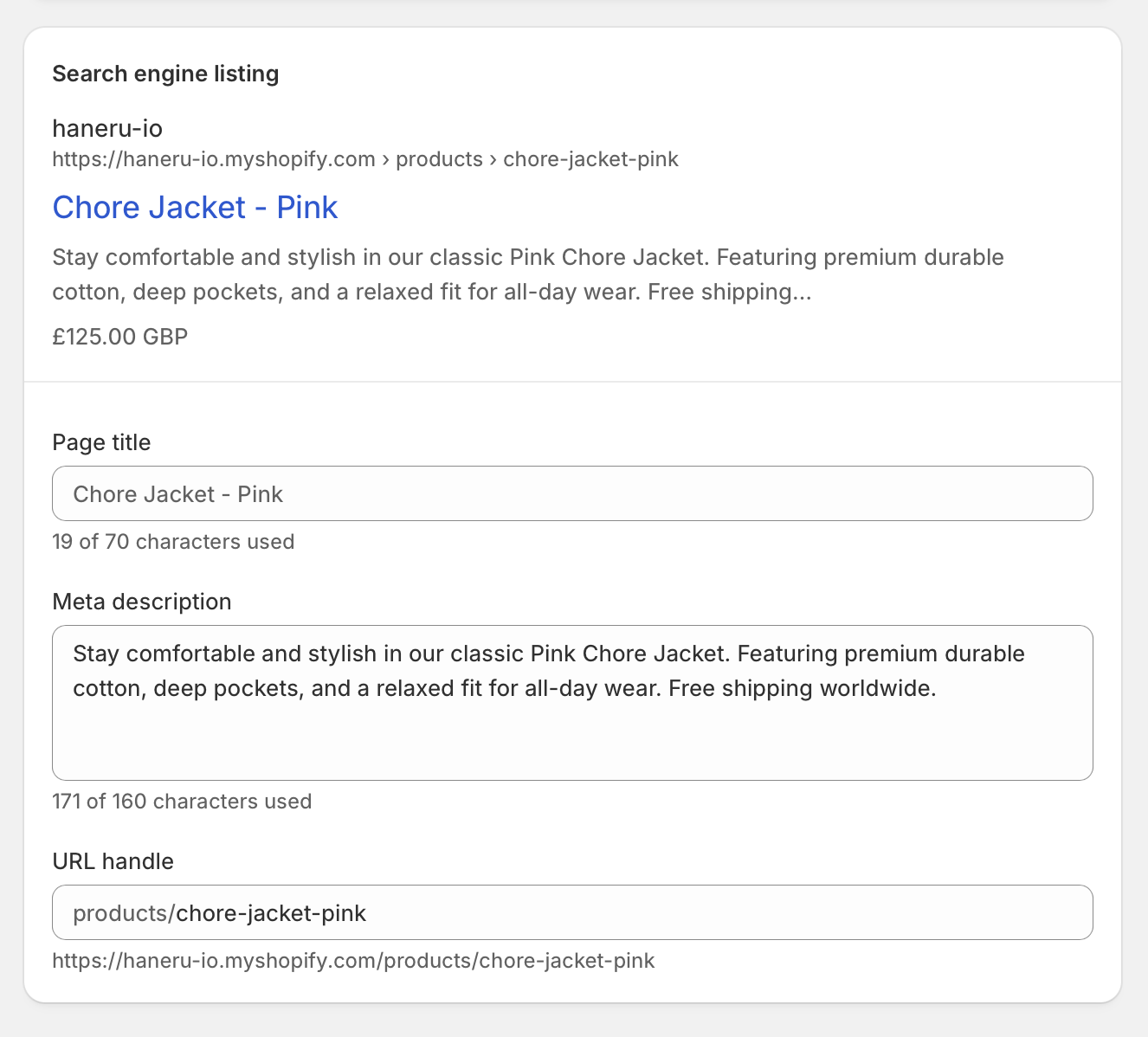
Section titled “6. Ignoring SEO Fields on Products and Collections”Every product and collection in Shopify has a Search Engine Listing section at the bottom with fields for a page title and meta description. Most new store owners leave these blank, which means Google generates its own, usually by pulling text from the description in a way that’s rarely ideal.
The fix: Fill in the SEO fields on your most important pages, your top collections and bestselling products, before launch. You don’t need to do everything at once, but leaving every single page blank is a missed opportunity.
7. Using the Default Shopify Notification Email
Section titled “7. Using the Default Shopify Notification Email”By default, order and shipping notifications come from notifications@shopify.com. This looks generic at best and like spam at worst. Customers see this in their inbox before they see any of your branding.
The fix: Go to Settings → Notifications and update the sender email to one from your own domain. This requires verifying a business email. If you haven’t set one up yet, it’s worth doing before launch.
8. Forgetting to Remove the Storefront Password
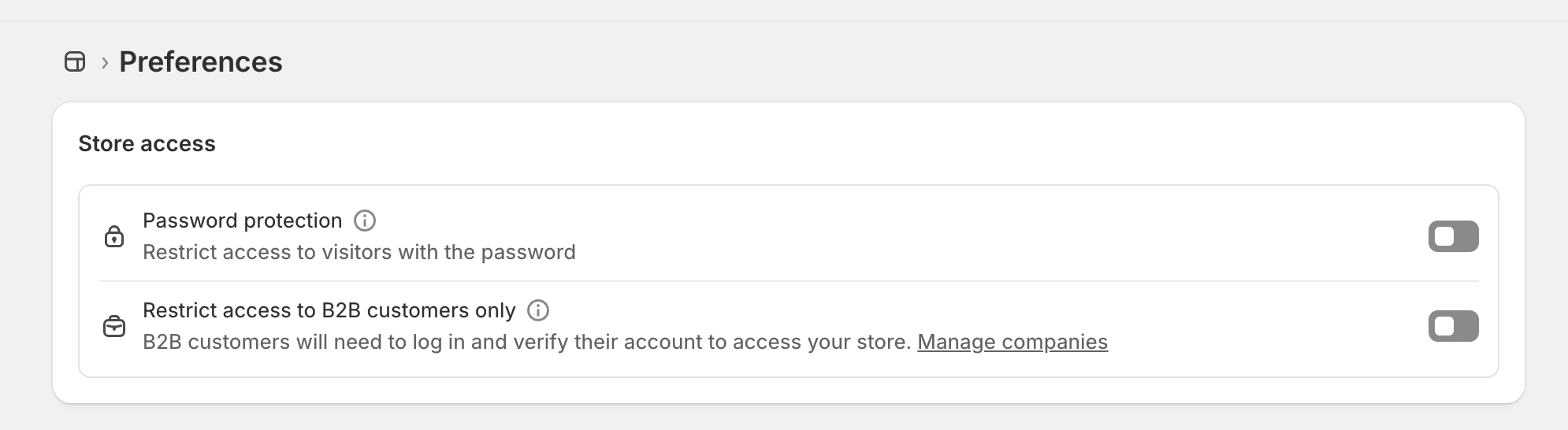
Section titled “8. Forgetting to Remove the Storefront Password”If you’ve been building your store in private mode, there’s a password on your storefront that prevents anyone from seeing it. It’s easy to forget this is on, announce your launch, and then spend the next hour wondering why nobody can find your store.
The fix: Go to Online Store → Preferences → Password protection and make sure it’s disabled before you tell anyone your store is live.
9. Not Customising Policy Templates
Section titled “9. Not Customising Policy Templates”Shopify’s policy templates are useful starting points, but many store owners save them without reading them. The default return policy, for example, includes placeholder timeframes and conditions that may not match what you’ll actually honour.
If a customer references your policy in a dispute and it says something you don’t stand behind, that’s a problem.
The fix: Read through each policy and edit it to reflect what you’ll actually do. Pay particular attention to the return window, who pays return shipping, and any product categories you treat differently.
10. Skipping Mobile Testing
Section titled “10. Skipping Mobile Testing”A store that looks great on desktop but breaks on mobile is a store that loses a significant portion of its potential customers. Navigation menus that don’t open, images that crop awkwardly, and checkout buttons that are hard to tap are all common issues that only show up on a phone.
The fix: Test your store on an actual mobile device before launch, not just your browser’s mobile emulator. Walk through the full journey from homepage to product page to checkout and check that everything is usable on a small screen.