Part 2: Creating Your Shopify App
In this part I’ll handle the Shopify side of things. You need to create a custom app that gives the script the credentials and permissions to communicate with your store.
Step 1: Getting to the Dev Dashboard
Section titled “Step 1: Getting to the Dev Dashboard”Head to Settings → Apps and sales channels. Near the top of the page you’ll see an App development section with a Build apps in Dev Dashboard button.
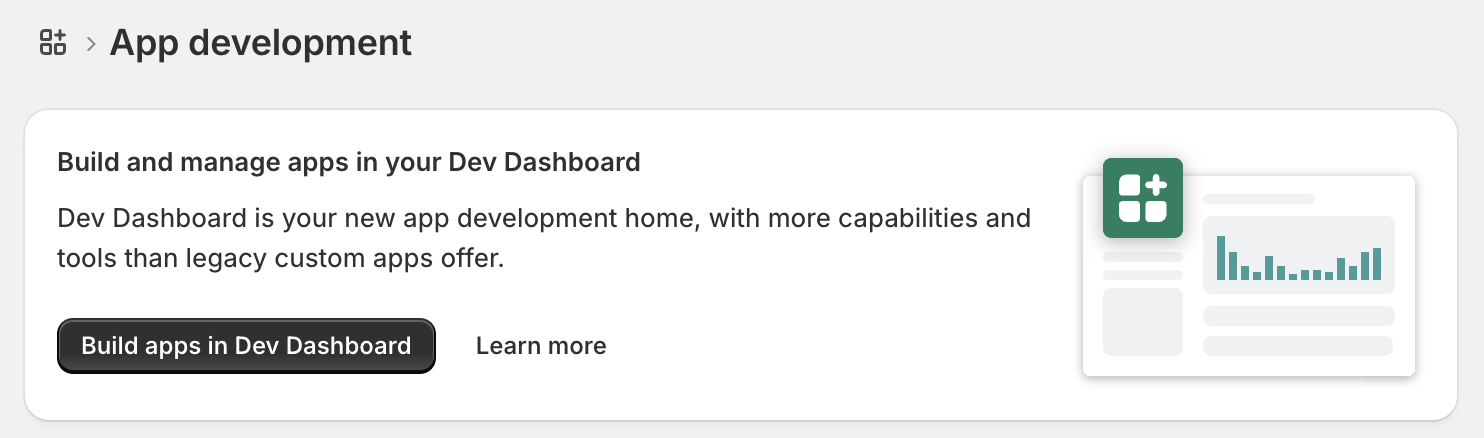
Before clicking it, one thing worth knowing. As of January 2026, Shopify retired the old legacy custom apps system. If you’ve come across tutorials referencing Private Apps or an API key setup under Settings, they’re out of date. The Dev Dashboard is the current approach and it’s where you’re headed. Don’t worry, the process has not changed too much.
Step 2: Create the App
Section titled “Step 2: Create the App”Once in the Dev Dashboard, click Create app in the top right and give it a name. Something like price-sync is descriptive enough. Hit create and you’ll land on the app settings page.
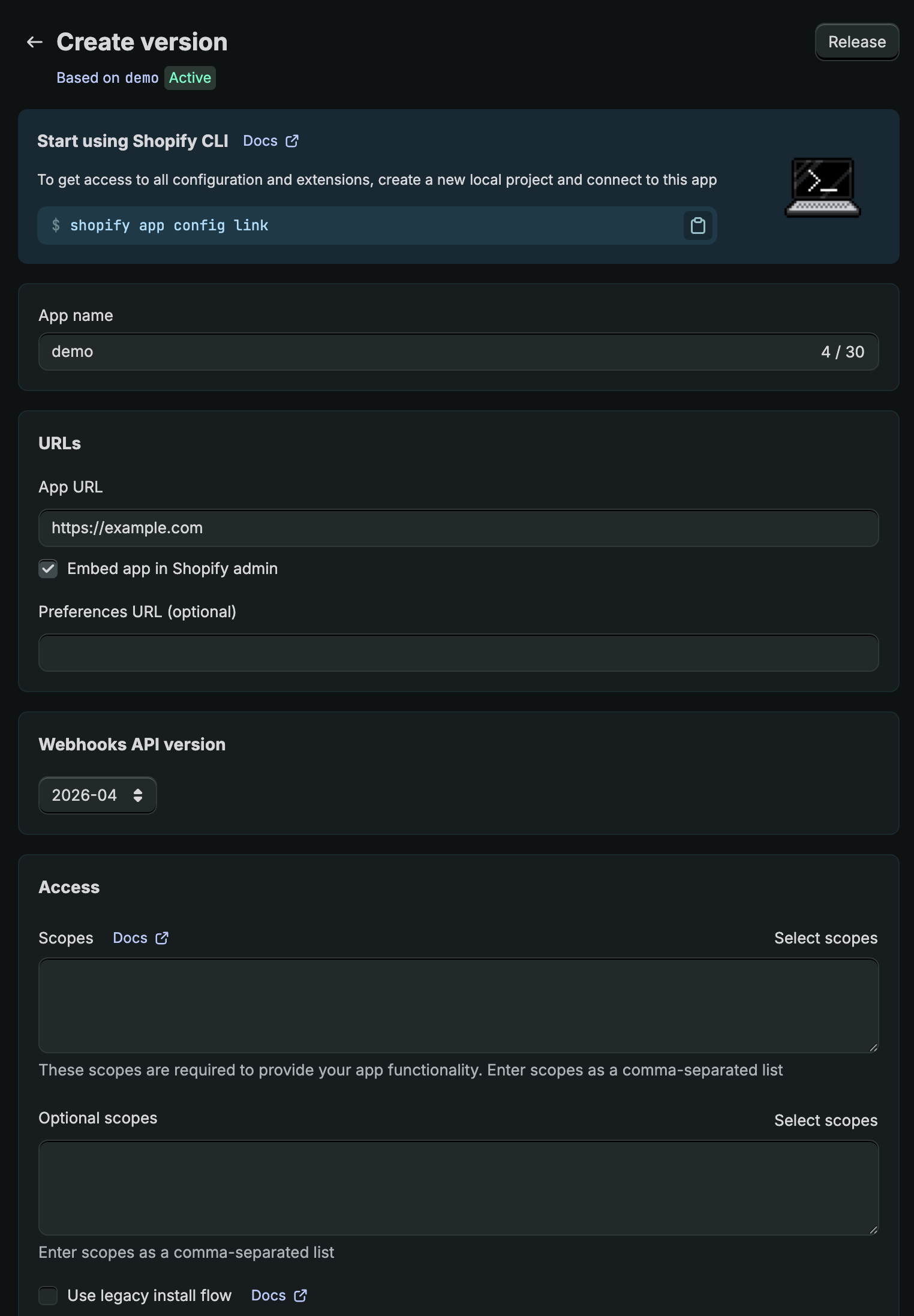
There’s quite a bit on this page. Here’s what matters and what doesn’t.
URLs and Webhooks API version: skip these entirely. These sections are for apps that embed inside the Shopify admin interface or need to receive real-time event notifications from your store. The script does neither. It just pushes data to Shopify when you run it, so leave everything here as it is and scroll down.
Step 3: Set Your Scopes
Section titled “Step 3: Set Your Scopes”Scopes are permissions. They tell Shopify exactly what your app is allowed to read or write, so it’s good practice to request only what’s genuinely needed.
Click Select scopes under the Access section and add:
read_productswrite_products
read_products lets the script find your products by Handle. write_products lets it update their prices. That covers everything the script does. Save your scopes once selected.
Step 4: Install the App on Your Store
Section titled “Step 4: Install the App on Your Store”With scopes saved, you need to install the app on your store before credentials are generated. Look for the Install app button. Shopify will ask you to confirm the permissions you’ve requested. Confirm and install.
Once installed, you’re ready to grab the credentials.
Step 5: Retrieve Your Credentials
Section titled “Step 5: Retrieve Your Credentials”After installation, go to the API credentials tab on your app. You’ll find two values here:
- Client ID: your API key, visible by default
- Client Secret: click Reveal secret key to view it
Copy both values somewhere safe. You’ll need them when I write the script.
What You Should Have at the End of Part 2
Section titled “What You Should Have at the End of Part 2”- A custom app created in the Shopify Dev Dashboard
- Scopes set to
read_productsandwrite_products - App installed on your store
- Client ID and Client Secret copied and ready
In Part 3 I’ll write the script itself and connect everything together.